Stencify: Tattoo Stencil Maker
- 4.6
- Rating
- 10.00K
- Installs
- Free
- Price
 Analysis by App-foxy
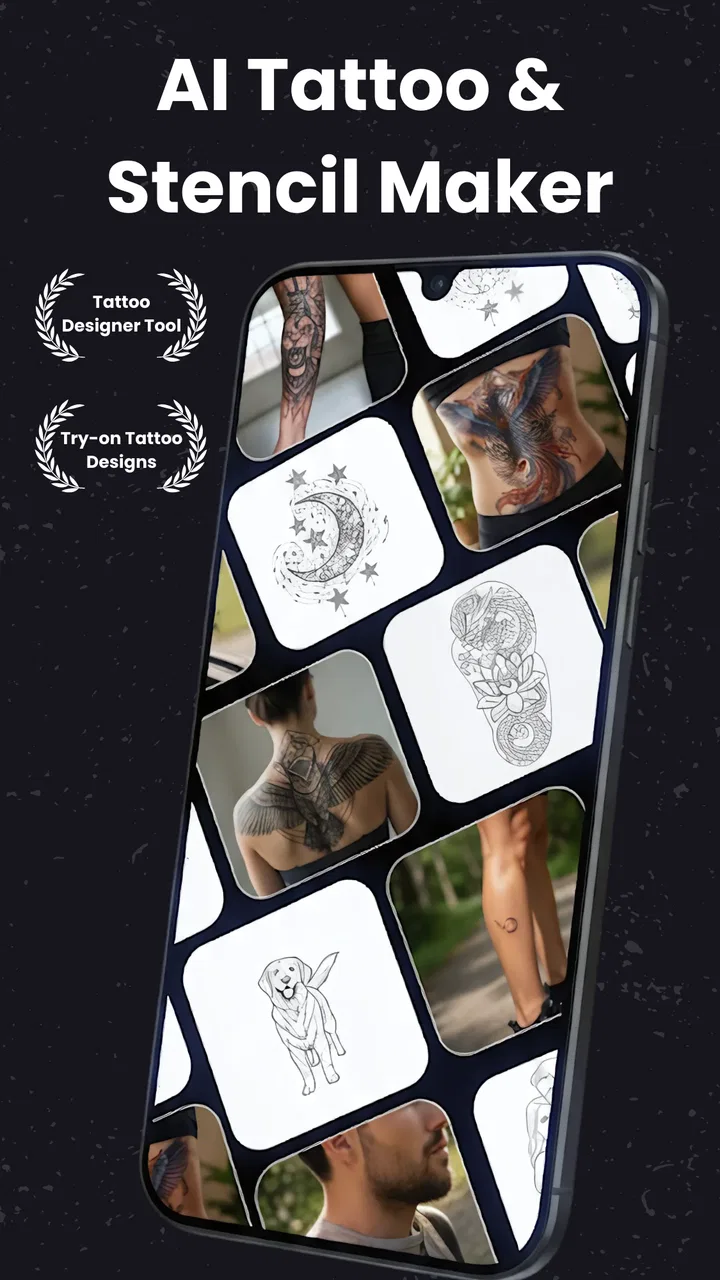
Turning a reference image into a tattoo-ready stencil sounds simple until you try to prepare one yourself. A normal photo can contain soft shadows, uneven lighting, background clutter, and tiny details that look attractive on a screen but become confusing when transferred to skin. Stencify: Tattoo Stencil Maker is built around that specific problem: it generates tattoo designs and converts images into professional-looking stencils. After spending time with it, I see the app less as a general drawing tool and more as a practical preparation step between an idea and a tattoo artist’s workstation.
That focus is its biggest strength. Instead of asking me to draw every line manually, the app is intended to help transform visual material into something closer to a usable stencil. It belongs to the Art & Design category, comes from Consumer Monkey, and is available free of charge, although in-app purchases range from $4.99 to $47.99 per item. The current version is 0.1.38, and it runs on Android 7.0 or later, which makes it accessible even on older compatible devices.
I would not treat the result as a guaranteed final tattoo pattern without checking it carefully. A stencil is not merely a black-and-white picture; it has to preserve the right shapes, remove distracting information, and remain understandable when reduced to a tattoo. Still, for someone who wants to explore an image before taking it to a professional, this app offers a much more direct starting point than trying to edit everything in a conventional photo editor.
You May Also Like

 Pandora - Music & Podcasts
Pandora’s Music Is Easy to Start, but Harder to Recover
Pandora’s strength is its low-effort path from a seed to a station. Its weak spot is how much confidence it asks you to place in connection, setup, and quiet recovery.

 8 Ball Pool
8 Ball Pool Is Built on Rivalries, Rematches, and Routine
A close look at the rivalries, rematches, shared routines, and unanswered safety questions that turn a quick pool match into a persistent mobile community.

 Samsung Music
Samsung Music’s Quiet Strength Is Playing What You Already Own
Its reach comes less from spectacle than from dependable access to a personal library. That simplicity is both the app’s strongest retention engine and its ceiling.

 AccuWeather: Weather Radar
AccuWeather Review: A Quick, Clear Forecast for Everyday Decisions
For everyday plans, the best forecast is the one you can understand quickly. AccuWeather makes rain timing, radar, and local conditions easy to act on, with a few trade-offs.

 Hill Climb Racing
Why Hill Climb Racing Still Turns Crashes Into One More Run
A tiny car, a bumpy hill and one more upgrade: Hill Climb Racing keeps resurfacing because its simple chaos makes every near-miss feel personal.

 AliExpress - Shopping App
AliExpress Makes Global Shopping Feel Personal, but Shoppers Bear the Risk
AliExpress turns a global marketplace into a pocket-sized discovery engine. Its reach is useful, its shopping loop compelling, and its trade-offs easy to miss.
More From Our News Desk
View All News

Why image-to-stencil conversion matters
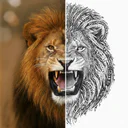
The central capability is the conversion of an image into a stencil-style design. That distinction matters because a tattoo reference and a tattoo stencil serve different purposes. A reference can depend on color, texture, lighting, and subtle gradients. A stencil needs clearer boundaries. If the conversion is too soft, important lines disappear. If it is too aggressive, the design becomes a dark block with no useful separation.
In my experience, the value of this kind of tool is not that it magically creates a finished tattoo. Its value is that it lets me test whether an idea survives simplification. A portrait, symbol, pet photograph, flower, or object may look excellent in its original form but lose its identity when reduced to essential marks. Seeing that reduction early can save time and can also lead to a better conversation with the tattoo artist.
That makes the app useful for two different groups. A person planning a first tattoo can use it to explore whether a personal image has a clear silhouette. An artist or apprentice may use it during the early concept stage to examine possible line structures before refining them in a more specialized workflow. The app is not replacing professional judgement, but it can make the first stage less intimidating.
The most useful mindset is to judge each output as a draft. I look for the outer contour first, then the internal lines, then the areas where shadows have merged. If the main subject is still recognizable after conversion, the app has done something valuable. If the image becomes muddy, the problem may be the source image rather than the tool itself.
Choosing the right source image
A practical tip that is easy to overlook is to begin with a clean source rather than expecting the converter to rescue a poor one. A well-lit image with a distinct subject usually gives me a more understandable starting point than a dramatic photograph with a busy background. For a pet, I would choose a side or three-quarter view where the eyes, nose, and jaw are visible. For a flower, I would avoid a photograph in which petals overlap into one dark mass.
Background removal is especially important in spirit, even when the original image seems attractive. Branches, furniture, clothing folds, and shadows can be interpreted as part of the subject. Before accepting a result, I check whether the strongest lines describe the object I actually want tattooed. If they describe the background instead, I would return to a simpler image rather than trying to force that output into a design.
This also explains why the app can feel more successful with bold subjects than with delicate realism. A simple emblem, animal silhouette, ornamental object, or high-contrast face has a clearer visual hierarchy. Fine lace, smoke, hair, and translucent fabric require more artistic control than an automatic conversion can reasonably provide.
What the workflow feels like in practice
The appeal of Stencify is the short distance between inspiration and experiment. I can start with an image, inspect the converted design, and decide whether the concept deserves further work. That is much quicker than opening a full desktop graphics program, learning a collection of selection and threshold tools, and manually rebuilding the image before I even know whether the tattoo idea works.
That simplicity is helpful for casual users, but it also creates a responsibility: I need to inspect the output instead of assuming every visible mark should remain. A tattoo stencil should communicate structure. Random texture, photographic grain, and tiny accidental edges can make a design harder to apply and harder to age gracefully. I would use the generated result as a visual guide, then discuss line weight, scale, placement, and detail with a tattoo professional.
One of the more useful workflows is to make several versions from the same concept rather than committing to the first conversion. For example, I might try a close crop of a dog’s head, a wider crop showing the ears and neck, and a simplified image with less background. Comparing those versions reveals which features are doing the real identification work. Often the strongest tattoo idea is not the most detailed one; it is the version with the clearest outline and a few intentional interior marks.
Another helpful approach is to inspect the design at the approximate size I am considering. A pattern that looks readable when enlarged on a phone may lose its small details when imagined on a wrist or ankle. Conversely, a design that appears sparse on screen may become balanced at a larger size. This is where the app helps with exploration, but it cannot make the final decision for placement or long-term legibility.
A realistic everyday use case
Imagine someone wants a tattoo based on a rescue cat. They have several favorite photographs, but each one includes different problems: one has a distracting sofa, another hides part of the face, and a third has beautiful lighting but very little contrast. I would use the app to test the images one by one, paying attention to whether the ears, eyes, whisker area, and jaw remain distinct after conversion.
The best result might not be the most sentimental photograph. It could be the less dramatic image with a clearer profile. That is an important practical discovery because the app turns a vague emotional choice into a visual comparison. The user can then bring the strongest draft to the artist and ask whether the proportions and detail level suit the chosen body area.
The same process works for a memorial flower, a family symbol, or a small object with personal meaning. I would create a few variations, remove any version that depends on tiny photographic details, and keep the one whose main shape survives simplification. The app is most valuable here as a decision-making aid, not as a promise that the phone has completed the tattoo design.
Where the convenience stops
The main trade-off is control. A dedicated desktop editor or professional tattoo-design workflow normally gives an experienced user more deliberate control over paths, layers, line cleanup, and exact proportions. Stencify’s attraction is speed and accessibility, so a person who needs pixel-level editing may eventually outgrow it or use it alongside another tool.
There is also a creative trade-off. Automatic conversion can preserve the obvious features of an image, but it may not understand which details matter emotionally or artistically. A small scar, a particular curl of hair, or a meaningful overlap between objects might be lost. On the other hand, an unimportant shadow may remain prominent. I would therefore avoid presenting an automatic result to an artist as if it were already a finished professional stencil.
Users should also think carefully about the source material they use. A low-quality image, a crowded composition, or a subject with weak contrast can produce a disappointing result even when the app is functioning as intended. This is not necessarily a flaw in the conversion process; it is a reminder that input quality shapes the usefulness of the output. Preparing a cleaner crop before conversion is often more effective than repeatedly processing the same complicated photograph.
The free entry point makes experimentation easy, but the presence of paid items means I would check what is included before relying on a particular part of the workflow. Someone who only wants to test a few ideas may find the free experience sufficient, while a frequent creator should consider whether the available purchase options match the way they plan to use the app. I would not buy anything simply because a first result needs artistic cleanup; cleanup is normal in tattoo preparation.
The Teen content rating is also worth keeping in mind for families and younger users. The app’s purpose is design-oriented, but the designs may relate to tattoos, so it is better suited to people who are already thinking responsibly about permanent body art. A teenager can use it for visual exploration, yet the final tattoo decision should involve an appropriate adult and a qualified professional where necessary.
How it compares with familiar alternatives
Compared with a standard photo editor, Stencify is more focused. A conventional editor may offer broader tools for cropping, contrast, selection, and retouching, but it also expects the user to know how to combine those tools. This app is more appealing when the immediate question is, “Can this image become a workable tattoo concept?” rather than, “How do I perform a complete image-editing project?”
Compared with drawing from scratch, it is faster for image-based ideas. Drawing manually remains the better choice when I want a completely original composition, precise ornamental balance, or a design built around the body’s shape rather than copied from a photograph. Stencify is strongest when the starting point already exists and I need to simplify or investigate it.
Compared with asking an artist to begin immediately, the app can improve the conversation. Bringing a rough visual direction is more useful than describing an image only with words. Still, I would let the artist reinterpret the draft. A professional may adjust the composition for skin movement, scale, placement, and aging in ways that a phone-based converter cannot predict.
Its rating of 4.6 from around 115 ratings suggests that the app has made a positive impression on the people who have tried it, while its install base of over 10 thousand indicates that it is still a relatively small tool rather than a universally established design standard. I read those figures as encouraging but not definitive. The app is interesting enough to test, though I would judge it by the quality of my own source images and the kind of stencil I need.
Who will gain the most from it
I think the best match is someone with a personal image and limited design experience. If I had never used image-editing software but wanted to explore a tattoo based on a pet, plant, object, or symbol, this would be a comfortable place to begin. The conversion gives me something concrete to react to, which is often easier than staring at a blank canvas.
It is also useful for people who want to compare concepts before booking a consultation. Creating a few rough directions can clarify whether they prefer a bold outline, a more detailed interpretation, or a simpler emblem. That preparation can make the eventual appointment more productive because the discussion starts with visual examples rather than an uncertain description.
Artists may find value in it as a quick ideation aid, especially when a client arrives with an image and wants to see how it might simplify. I would still expect an artist to refine the result independently. The app can shorten the exploratory phase, but professional design decisions remain important.
On the other hand, I would skip it if my goal were a fully custom illustration with exact geometry, complex lettering, or carefully controlled linework from the beginning. I would also look elsewhere if I needed a complete tattoo production environment rather than an image-conversion tool. In those cases, a drawing application with robust manual controls would be a better primary choice.
My practical recommendation
My recommendation is to use Stencify as a fast, visual test bench. Start with the clearest image you have, make more than one crop when possible, and judge the output by recognizable structure rather than by how much detail it preserves. Keep the strongest draft, but treat it as a conversation piece for a tattoo artist rather than a final instruction sheet.
The app’s current release, 0.1.38, and its support for Android 7.0 or later make it easy to try on a broad range of compatible phones. Its free price lowers the barrier to experimentation, while the paid items mean regular users should think about their intended workflow before spending. I appreciate that the product has a narrow, understandable purpose instead of pretending to replace every design tool.
For me, the real benefit is the moment when an uncertain tattoo idea becomes visibly testable. A photograph can be emotional, but emotion alone does not reveal whether the subject will translate into clean lines. This app helps expose that question early. If you use the result as a starting point, not as a substitute for professional tattoo design, it can save time and lead to a clearer, more thoughtful concept.
Consumer Monkey has made a focused Art & Design app for people who want to move from image to stencil without a complicated setup. It will not solve every design problem, and automatic simplification has limits, but it is a sensible choice for early exploration and image-based tattoo ideas. I would recommend it to curious beginners and creators who value quick comparisons; I would steer precision-focused professionals toward a more controllable editor for the final stage.
FAQs for Stencify: Tattoo Stencil Maker
01What is Stencify: Tattoo Stencil Maker used for?
Stencify: Tattoo Stencil Maker is designed to help tattoo artists and enthusiasts turn images, drawings, or reference photos into stencil-style designs. It can be useful for preparing tattoo concepts before transferring them to skin, simplifying artwork into clearer outlines, and experimenting with placement or composition. It is primarily a design and preparation tool, not a replacement for professional tattoo equipment or artistic judgment.
02Can I create a stencil from my own photo or drawing?
Yes, the app is intended to work with personal images and tattoo references, allowing you to import artwork or capture a design and adjust it into a stencil-like format. Results can vary depending on image quality, contrast, shadows, and fine details. For the cleanest output, use a high-resolution image with strong outlines and review the design carefully before printing or transferring it.
03Is Stencify suitable for professional tattoo artists?
Stencify can be a convenient addition to a professional artist’s workflow, especially for quickly preparing references, testing simplified outlines, or creating an initial stencil concept. However, experienced artists may still need additional editing software or manual adjustments for complex designs. Always inspect line thickness, small details, proportions, and print size before using the result on a client.
04Does Stencify print tattoo stencils directly?
The app can help prepare a stencil-ready design, but printing capabilities may depend on the device, operating system, app version, and the printer or stencil-transfer setup you use. In many cases, the finished image may need to be saved or exported and then printed through another application. Check the available export and sharing options before relying on it for a scheduled tattoo appointment.
05Is Stencify: Tattoo Stencil Maker free to download?
Availability, pricing, and included tools may differ between Android and iOS, so you should check the official store listing before downloading. Some features may be free while advanced editing, exporting, or removing limitations could require an in-app purchase or subscription. Review the pricing details, permissions, and cancellation terms carefully, particularly if you only need the app for a single project.
Pros
- Turns custom images into tattoo-ready stencil designs.
- Useful for testing placement and composition before tattooing.
- Simple interface suitable for beginners and experienced artists.
- Supports creative experimentation without permanent skin changes.
- Helpful reference tool for tattoo consultations and planning.
Cons
- Results may need manual cleanup for fine or crowded details.
- Some advanced tools or exports may require in-app purchases.
- Complex images can produce unclear stencil lines.
- Print quality depends on the device and paper used.
- Not a substitute for professional tattooing or hygiene guidance.

Stencify: Tattoo Stencil Maker
Gallery